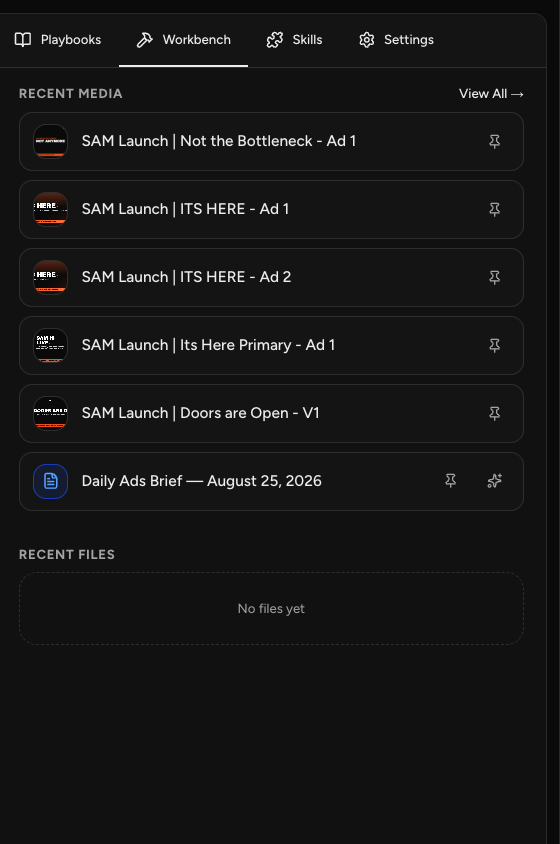
The Workbench is where the work your team creates is kept, ready to open, edit, download, or turn into a finished asset.
Open a chat with Sam or any specialist and select the Workbench tab in the panel on the right. It holds the text, images, and video your team has produced.
How Your Content Is Grouped
The Workbench has two sections.
- Recent Media: the work your team has made, including text, images, and video together in one list.
- Recent Files: other file types.
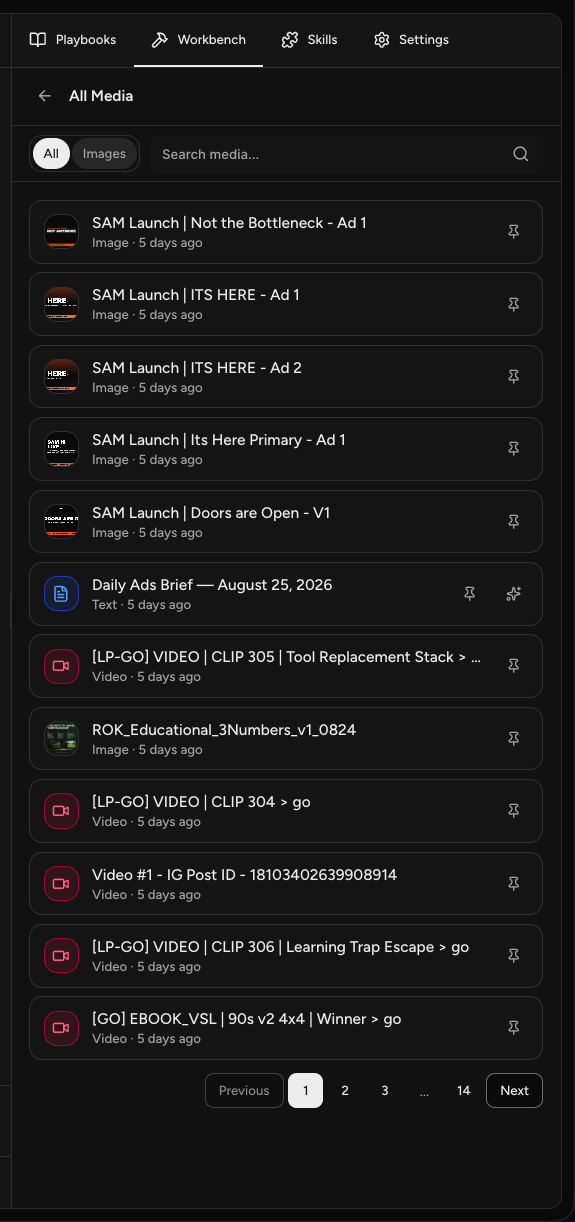
Each item shows its type and how long ago it was created, so you can tell a text draft from an image at a glance.
Select View All on Recent Media to open the fuller list. From there you can search by name, filter to Images or leave it on All, and page through your content.
Pinning an Item
Every item in the list has a pin control. Select it to move that item to the top of your Recent Media list, which is useful when you are working on something over several sessions and do not want to scroll for it.
Opening an Item
Select an item to open it. You will see its contents along with a type badge, such as TEXT, a version label, and how long ago it was created.
Text items open in an editor. Images and other files open in a preview, and you can zoom in on an image to see it larger.
Editing Text
Open a text item and a formatting toolbar appears above the content.
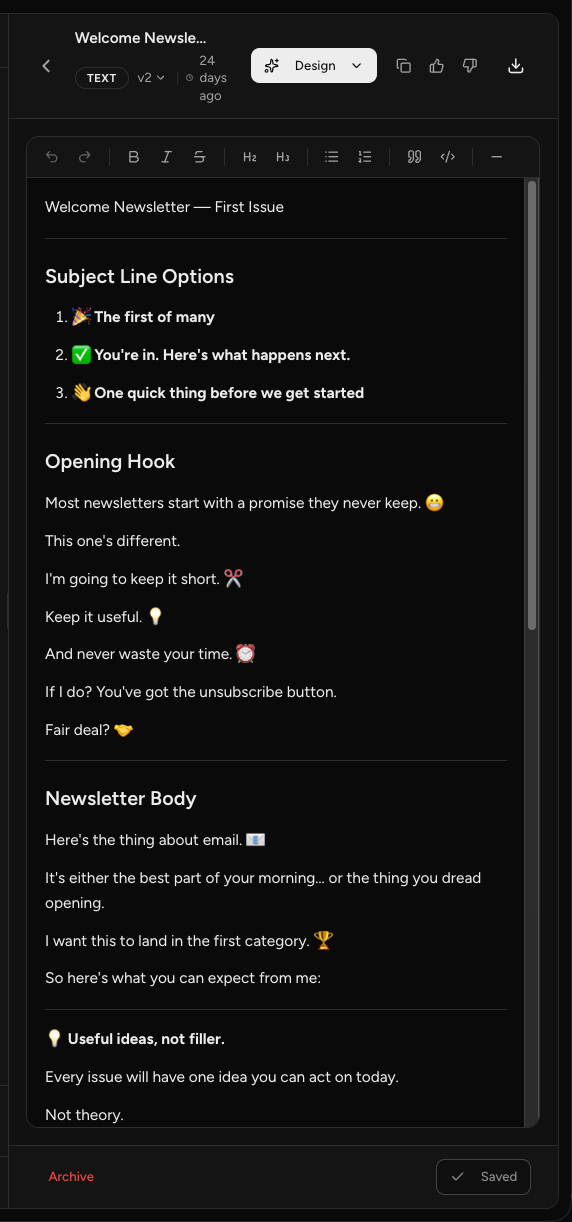
You get bold, italic, and strikethrough, two heading levels, bulleted and numbered lists, block quotes, code formatting, and a horizontal rule, along with undo and redo.
Your changes save as you go. A Saved state at the bottom of the panel confirms it, so there is nothing to submit.
NOTE: Editing is for text only. Images and video can be previewed and downloaded, but not edited here.
Downloading Your Content
Open an item, then select the download control in the top right. Text downloads as a text file and images download as a JPEG.
Turning Text into a Designed Asset
Any text item can become a finished, designed piece through the Design menu, which you can reach two ways. Select the design control on the item's row in the Workbench list, or open the item and use the Design button at the top.
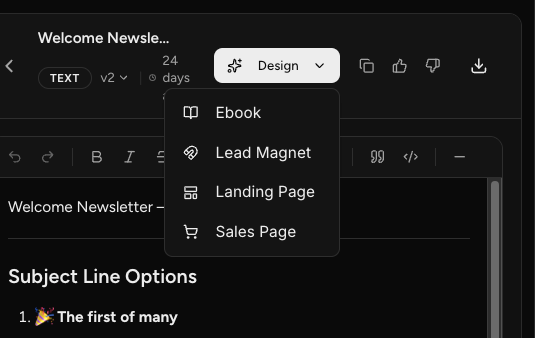
Either route gives you the same four options:
- Ebook
- Lead Magnet
- Landing Page
- Sales Page
Your original text stays where it is. The designed asset is created alongside it and appears nested underneath it in the list, labeled with what it is. Open the text item and you will also see it listed under Assets at the bottom.
Landing pages and sales pages also appear under Webpages in the left navigation.
NOTE: These are built by Typeset, working inside Sam. That is separate from the Designer Specialist, which creates images and video. If you want an ebook or a landing page from text you already have, the Design menu is the route, not the Designer.
Archiving an Item
Open a generated item and select Archive at the bottom of the panel.
Archiving does not delete anything. The item moves out of your active view, and you can still find it in My Media by switching its status filter from Active to Archived.
Where Else Your Content Lives
What you see in the Workbench is also available in My Media in the left navigation, organized by type. The Workbench is the version of that you reach without leaving your conversation.
Frequently Asked Questions
Q: Where does the content Sam or a specialist made go?
A: Into the Workbench, the tab in the panel on the right side of a chat. It holds the text, images, and video your team has produced. The same content is also available in My Media in the left navigation.
Q: Can I edit what Sam makes?
A: Text, yes. Open a text item and use the toolbar for bold, italic, strikethrough, headings, lists, quotes, and code. Changes save automatically. Images and video cannot be edited in the Workbench, but you can preview and download them.
Q: How do I turn Sam's text into a landing page or an ebook?
A: Use the Design menu, either from the item's row in the Workbench or from the top of the item once you open it. It offers Ebook, Lead Magnet, Landing Page, and Sales Page, and Typeset builds the asset from your text. This is not something the Designer Specialist handles.
Q: Did designing an asset replace my original text?
A: No. Your text stays exactly where it was. The designed asset is added alongside it, nested under the original in the list and shown under Assets when you open the text item.
Q: What does pinning do?
A: It moves the item to the top of your Recent Media list so you can get back to it without scrolling.
Q: Can I get an archived item back?
A: Yes. Archiving only moves an item out of your active view. Go to My Media and switch the status filter from Active to Archived to find it.
Q: Can I download what Sam makes?
A: Yes. Open the item first, then select the download control in the top right. Text downloads as a text file and images download as a JPEG.