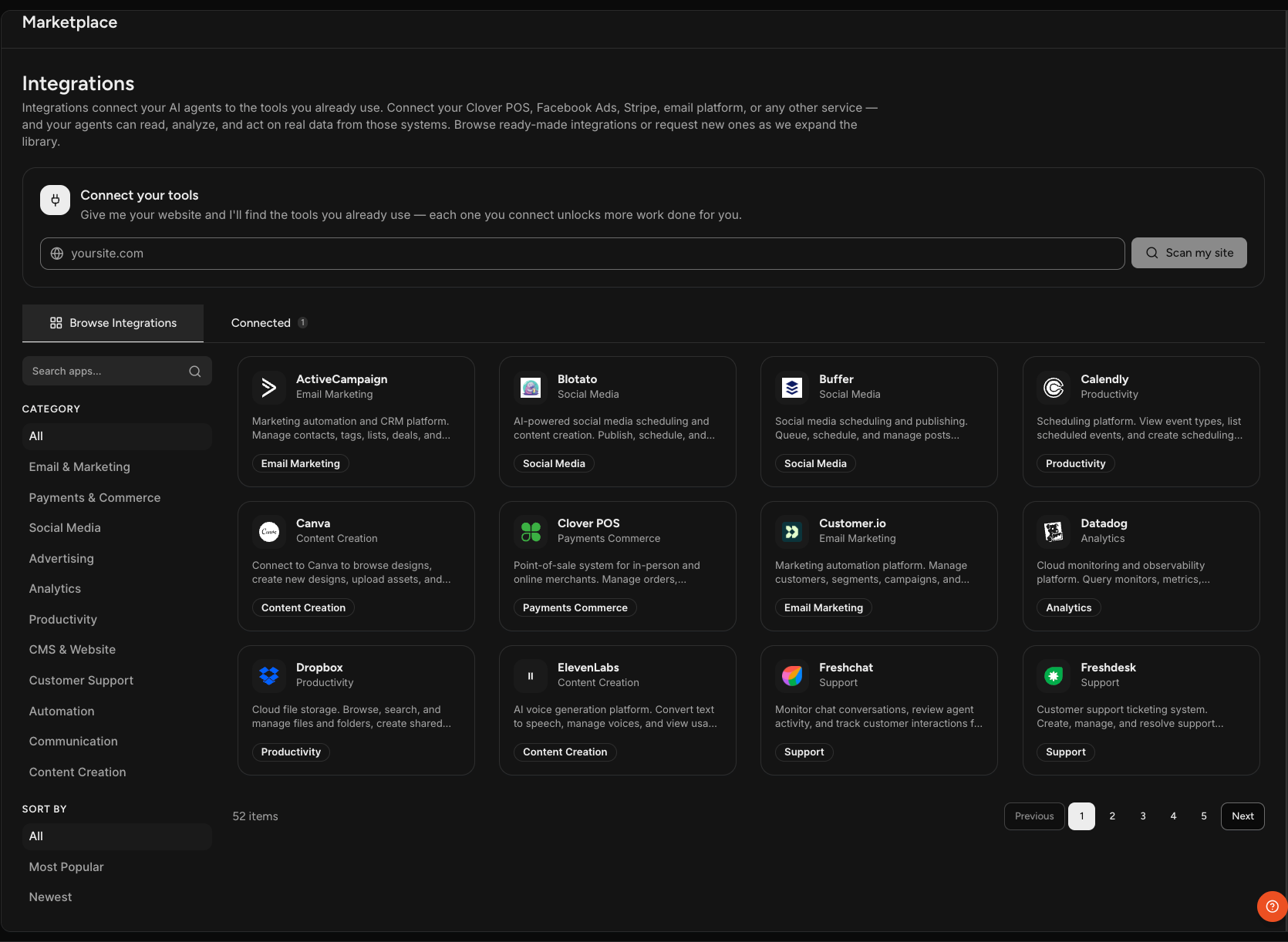
Connect the platforms you already use so Sam and your specialists can work with your real data instead of information you paste in.
An integration is a connection between Sam and an outside platform you already use, such as an email marketing tool, a payments or commerce system, an ad platform, or a support tool. Once a platform is connected, Sam and your specialists can work inside it and pull information from it, which means their output is based on what is actually happening in your business.
You connect a platform once. From there, you can control which of your specialists uses it.
Connecting an Integration
Select Connect your tools at the bottom of the left navigation. This opens the integrations marketplace.
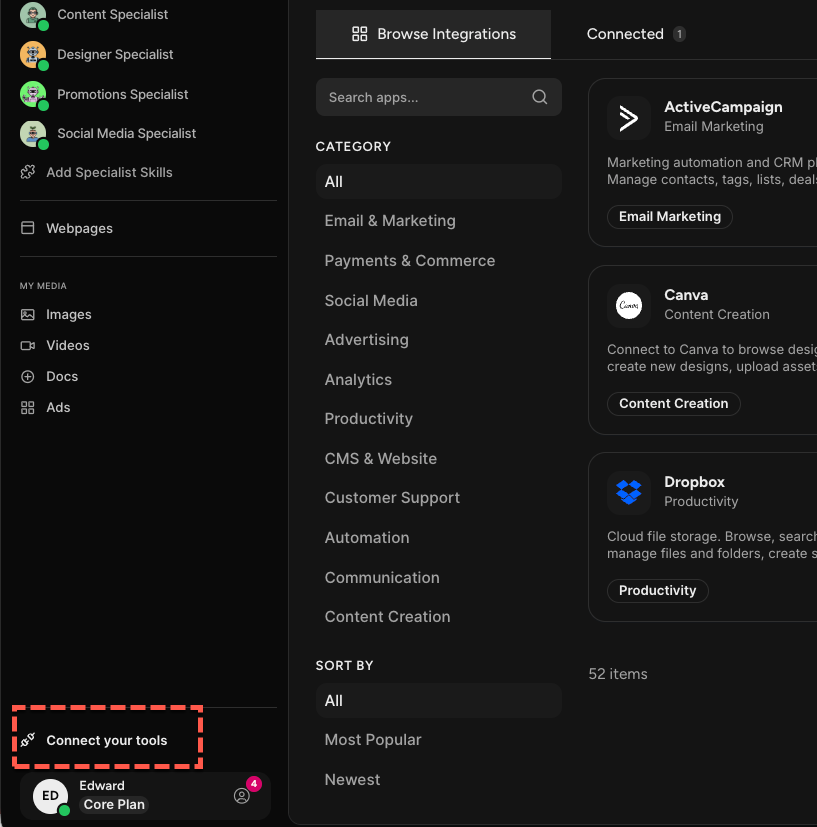
On the Browse Integrations tab, search for a platform by name or filter by category to find what you are looking for. Find the platform you want and connect it, which authorizes Sam to work with it.
What you need in order to connect depends on the platform. Some ask you to sign in and approve access. Others ask for an API key or token that you generate inside that platform.
Once the connection succeeds, that platform moves to your Connected tab.
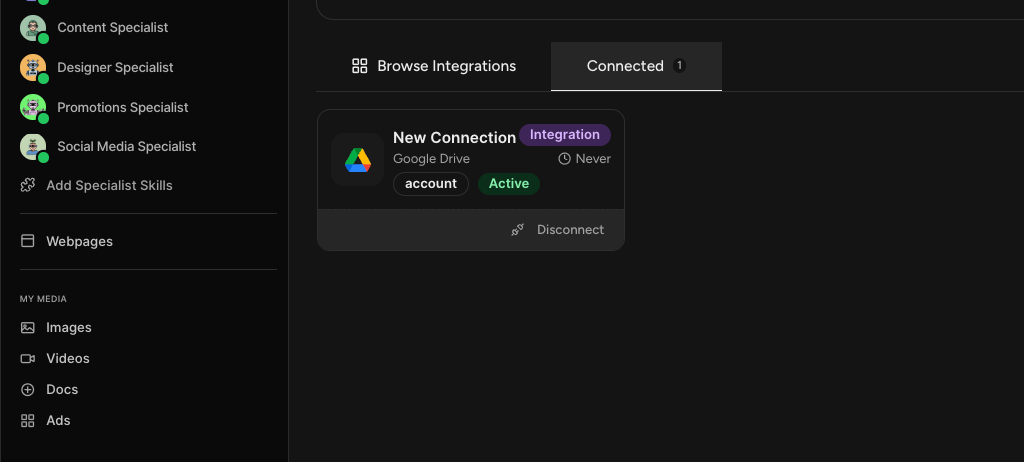
Connecting Your Tools to Sam - the full list of available integrations by category
What Your Specialists Can Do with a Connected Platform
Once a platform is connected, Sam and your specialists can read data from it, analyze that data, and take action inside the platform. A connected analytics platform lets them pull and analyze your metrics. A connected support tool lets them work with your tickets.
Exactly what is possible depends on the platform you connected, since each one makes different actions available. To see what a specific platform supports, open its page in the marketplace.
Turning an Integration On or Off for a Specialist
When you connect a platform, it is turned on for your specialists by default, so there is nothing more to do if you want everyone to use it.
If you would rather a particular specialist not use a connected platform, you can turn it off for that specialist individually in its settings.
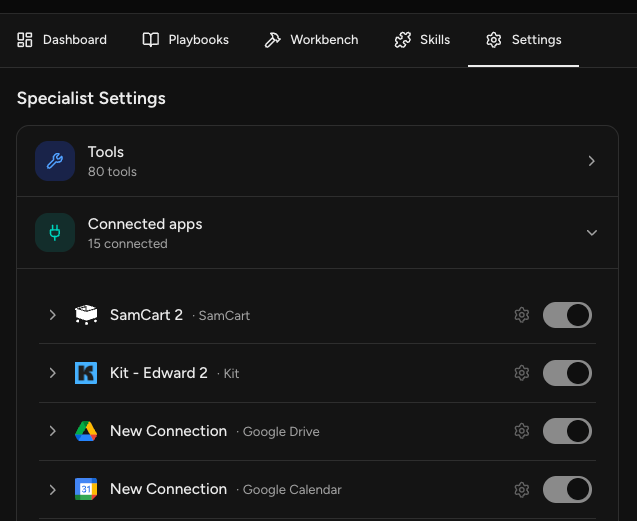
NOTE: In a specialist's settings, this section may appear as connected apps. Those are the same integrations you connected under Connect your tools, just labeled differently in that view.
Frequently Asked Questions
Q: What is an integration in Sam?
A: An integration is a connection between Sam and an outside platform you already use, such as an email, ad, payments, or support tool. Once connected, Sam and your specialists can read, analyze, and act on your real data in that platform instead of working from information you paste in.
Q: How do I connect a platform?
A: Select Connect your tools at the bottom of the left navigation, find the platform on the Browse Integrations tab, and connect it. Connecting authorizes Sam to work with that platform. Connected platforms then show under your Connected tab.
Q: Do I have to connect any integrations?
A: No. Integrations are optional and Sam works without them. Connecting platforms improves the quality of the work, because Sam and your specialists have more real data to draw on and more places where they can carry out a task.
Q: If I connect a platform, does every specialist get to use it?
A: Yes, by default. A newly connected platform is turned on for your specialists automatically. You can turn it off for an individual specialist in that specialist's settings if you want to limit who uses it.
Q: My specialist's settings say connected apps. Is that the same as an integration?
A: Yes. The connected platforms listed in a specialist's settings are the integrations you connected under Connect your tools. That is where you connect a platform, and the specialist's settings are where you turn a connected platform on or off for that specialist.
Q: Which platforms can I connect?
A: Select Connect your tools and browse by category on the Browse Integrations tab. New integrations are added over time, so that tab is always the current list.