Your home screen is where Sam tells you what needs attention and where you pick up your work.
When you sign in to Sam, you land on Home. The left side is your navigation, which stays visible everywhere in Sam. The main area holds panels that summarize your day, your recent work, and how your AI team is performing.
You can return to this screen at any time by selecting Home at the top of the left navigation.
Getting Around the Left Navigation
The top group covers the places you move between most often. Home brings you back here. Marketing Calendar shows planned marketing activity by date. Tasks holds work items for you and your AI team. Analytics opens your reporting. Search finds items across Sam, and you can open it from the keyboard with Command+K on a Mac or Control+K on Windows.

Below that sits Sam AI, which opens a conversation with Sam.
Under Your Marketing Team are your five specialists: Ads Specialist, Content Specialist, Designer Specialist, Promotions Specialist, and Social Media Specialist. Each one is trained for its own area of marketing.
Webpages has its own spot in the navigation. Below it, My Media holds your saved assets by type: Images, Videos, Docs, and Ads.
At the very bottom, Connect your tools opens the integrations marketplace, and your profile chip opens your account options.
Working with Sam and Your Specialists
You can work two ways, and both are valid.
Talk to Sam AI and let Sam handle it. Sam works as an orchestrator, breaking down what you asked for, delegating pieces to the right specialists, and bringing the finished work back into your main conversation. Sam also handles general questions directly.
Or go straight to a specialist. Select any specialist in the left navigation to work with it one on one, which is useful when you know exactly what kind of output you want.
Sam's Briefing
The panel at the top of your home screen is a summary of where things stand, generated automatically. It shows when it was last generated and refreshes on its own.
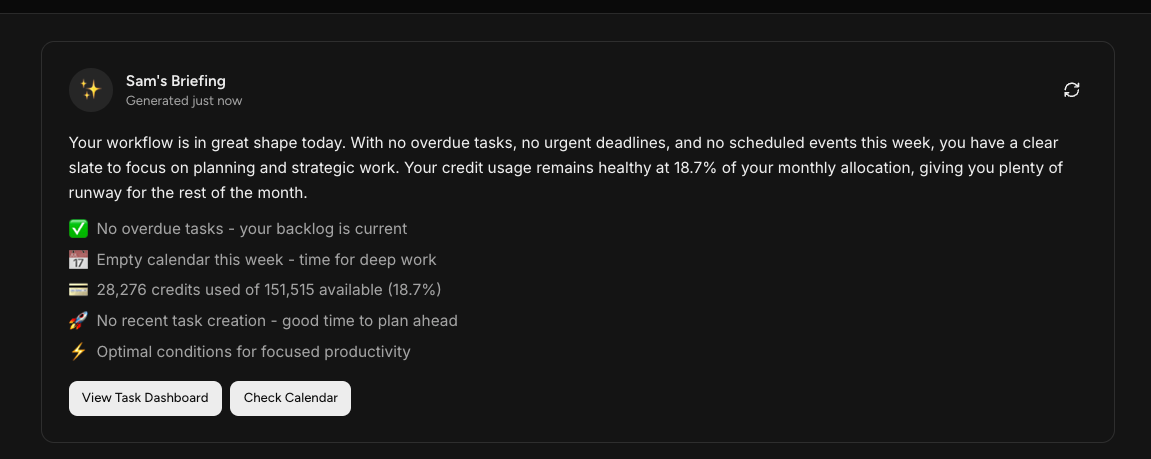
The briefing typically covers tasks due today, anything overdue, upcoming calendar events, what your team has produced recently, and where your credit usage stands. Read it first thing to decide what to work on.
Your Priorities
Next to Recent Conversations, this panel surfaces what needs your attention right now. When nothing is outstanding, it tells you that you're all caught up. A Talk to Sam button here opens a conversation whenever you want to get something moving.
Recent Conversations
This panel lists your most recent chats with Sam so you can pick one back up. Each entry has a Resume option that reopens the conversation where you left off.
If you're new to Sam, this panel shows Sam's opening message asking about your business.
Automations
Automations let your AI team work on a schedule instead of waiting for you to ask. Before you've created any, this panel shows a Set Up Your First Automation button.
You set up and control each automation yourself, so nothing runs that you didn't schedule.
Sam automations - for creating and managing automations
AI Team Performance
The panel at the bottom reports month-to-date totals for your AI team: Tasks Completed, Content Created, and Credits Used as a percentage of your monthly allowance.
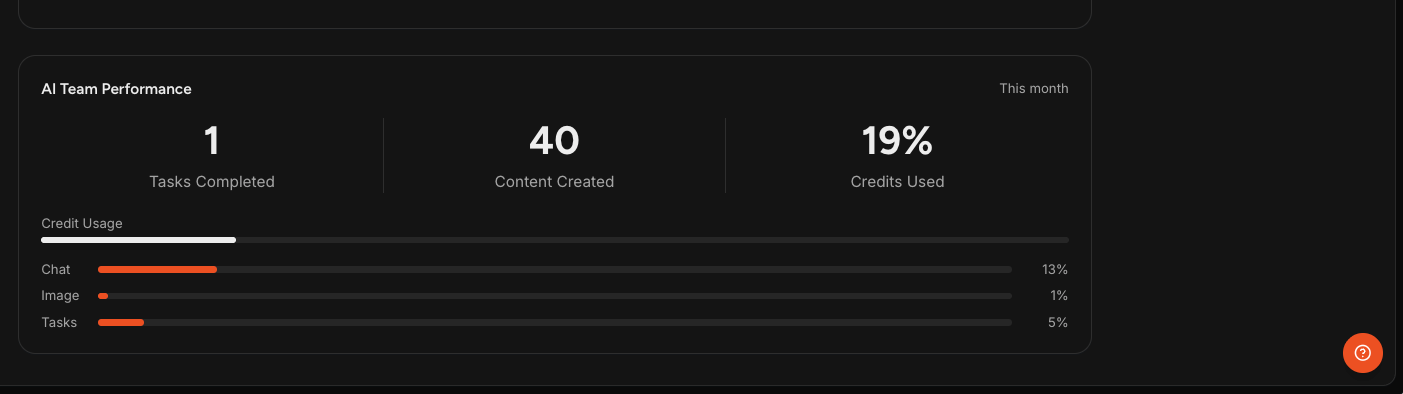
Underneath, Credit Usage breaks your consumption down by type so you can see where your credits are actually going, split across Chat, Image, and Tasks.
Account Options and AI Usage
Select the profile icon on your account chip in the bottom left corner to open your account menu.
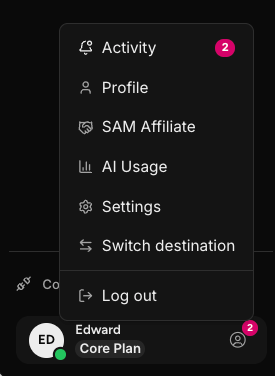
From here you can reach:
- Activity: your recent account activity and notifications.
- Profile: your personal profile details.
- SAM Affiliate: the Sam affiliate program.
- AI Usage: a full view of your AI usage against your plan's allowance.
- Settings: your account and workspace settings.
- Log out: signs you out of Sam.
NOTE: Your current plan is shown on the account chip itself, next to your name.
What the Home Screen Does Not Do
The home screen is a summary view. It reports on work, it doesn't produce it. To get something made, open Sam AI or a specialist and say what you want, or set up an automation to run on a schedule.
Reviewing and approving what your team produces still happens with you.
Frequently Asked Questions
Q: Where do I land after I sign in?
A: You land on Home, described in this article. Select Home at the top of the left navigation at any time to come back to it.
Q: How do I start a conversation with Sam?
A: Select Sam AI in the left navigation, or select Talk to Sam on your home screen. To continue an earlier conversation instead, use Resume in the Recent Conversations panel.
Q: Should I talk to Sam or go straight to a specialist?
A: Either works. Sam can take a request, delegate the pieces to the right specialists, and bring the finished work back to your conversation, which is the easier route when you're not sure who should handle what. Go directly to a specialist when you know exactly what you want made.
Q: My credit percentage is different in the briefing and the performance panel. Which is right?
A: The AI Team Performance panel is right. It updates live as you use Sam. Sam's Briefing shows the figure from the moment it was generated, and the timestamp on the panel tells you when that was. A small gap between the two is expected, not a bug.
Q: Where do I see how much AI usage I have left?
A: Two places. The AI Team Performance panel on your home screen shows credits used this month with a breakdown by type. For a fuller view, select the profile icon in the bottom left and choose AI Usage.
Q: Where are my images, videos, and documents?
A: In My Media in the left navigation, organized by type across Images, Videos, Docs, and Ads. Your webpages are separate, under Webpages just above that group.
Q: Why does my briefing say I have nothing to do?
A: The briefing reflects your actual workload. With no tasks due, nothing overdue, and no upcoming events, it reports that you're caught up. That's normal for a new account or one you've just cleared. Open Sam AI or a specialist to create some work.
Q: How do I open search?
A: Select Search in the left navigation, or press Command+K on a Mac or Control+K on Windows.
Q: Where do I find my account settings?
A: Select the profile icon on your account chip in the bottom left corner, then choose Settings.