
The Settings tab is where you configure how one specialist works, from its personality to the tools and platforms it can use.
Open a chat with Sam or any specialist and select the Settings tab in the panel on the right. You will find five sections: Skills, Tools, Connected apps, Automations, and Personality & instructions.
NOTE: This is not the same as the Settings page in your account menu, which holds your account and workspace settings. This tab configures a single specialist.
Settings Apply to One Specialist at a Time
Everything in this tab affects only the specialist whose chat you are in. Sam has its own settings, and each specialist has its own, set up independently.
Changing something for one does not change it for another. You can give your Ads Specialist one personality and your Designer Specialist a completely different one, and they will both keep working the way you set them up.
Skills
Skills are the instruction sets that teach this specialist to handle a particular kind of work a particular way. The header shows how many it has available, and USING means it is drawing on them.
Expand the section to see them listed under System. These come with your account and are always available, so there is nothing to install and nothing to switch on. Search skills narrows a long list.
If you want this specialist to do something a particular way every time, ask Sam in a conversation to build a skill for it.
Tools
Tools are the built-in capabilities a specialist can use, grouped by what they do. You will see groups such as Campaigns, Calendar, Media, Reporting, and Tasks, each showing how many tools it contains.
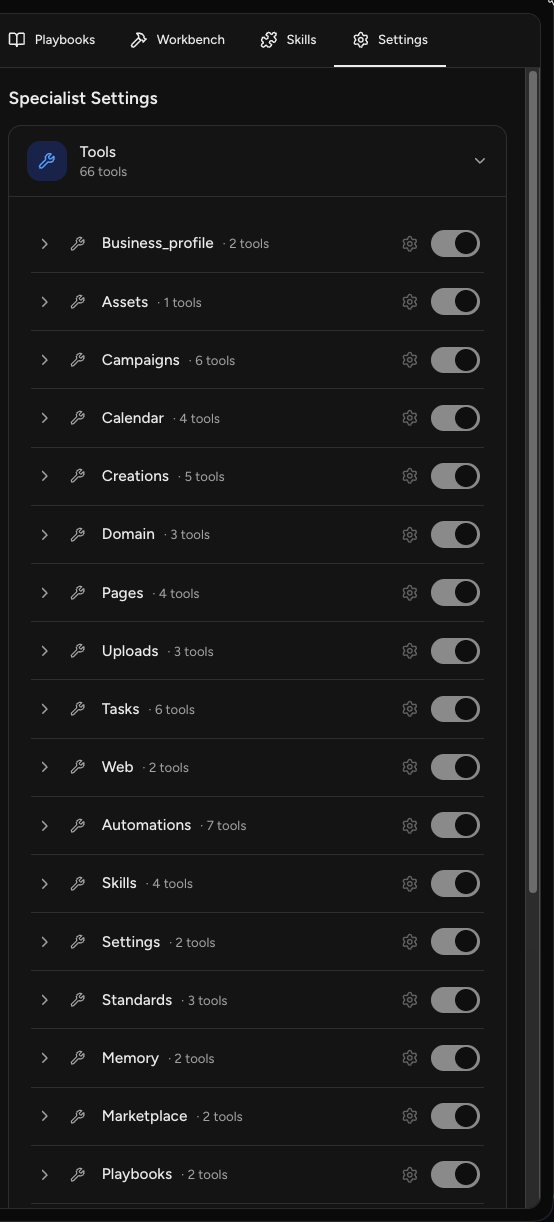
Expand the section to see the groups, and use the toggle on any group to turn that capability on or off for this specialist. Select the arrow beside a group to see the individual tools inside it.
Most people never need to touch this. It is there for when you want to deliberately narrow what a specialist reaches for.
Connected apps
Connected apps are the outside platforms you have linked to Sam, such as your email platform, your ad accounts, or your store. Each row shows the name of the connection and which platform it belongs to.
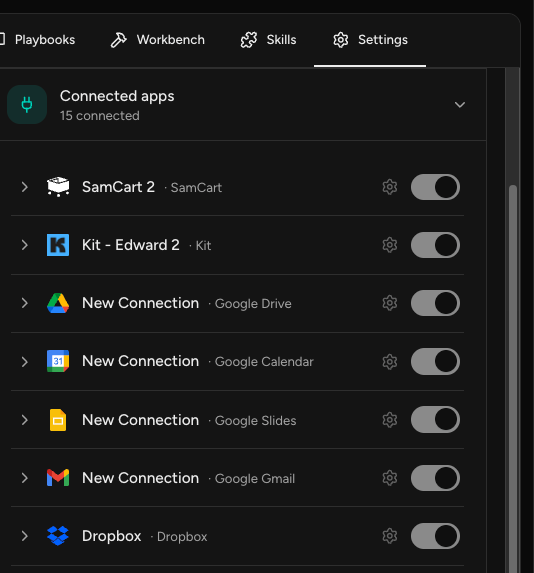
Use the toggle to control whether this specialist uses that connection.
NOTE: Turning a connection off here only stops this specialist from using it. The platform stays connected to Sam, your other specialists are unaffected, and nothing needs to be set up again if you turn it back on.
To connect a new platform, select Connect your tools at the bottom of the left navigation.
Automations
Automations are recurring tasks set up for this specialist. The section header shows how many exist and how many are currently active.
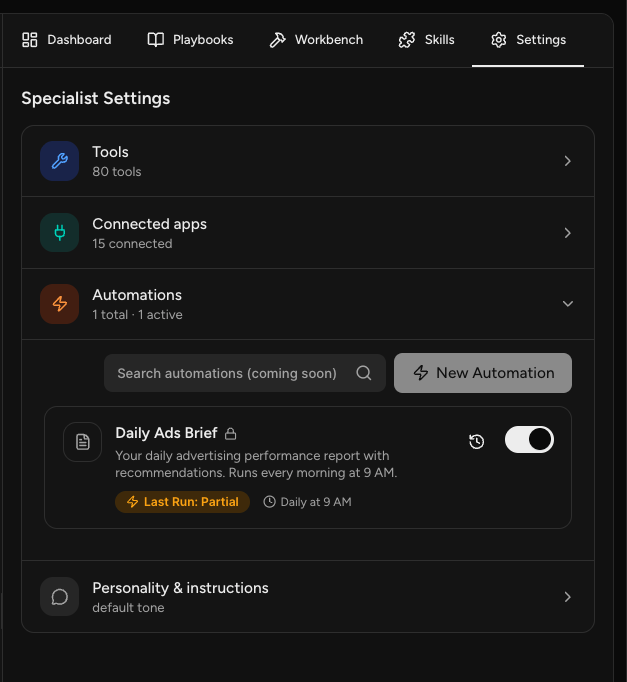
Each automation shows what it does and when it runs. Use its toggle to pause or resume it without deleting it. Select New Automation to create another.
Automations are specific to the specialist they belong to, so an ad reporting automation lives with your Ads Specialist rather than being shared across the team.
Personality & instructions
This section controls how a specialist sounds and any standing rules it follows.
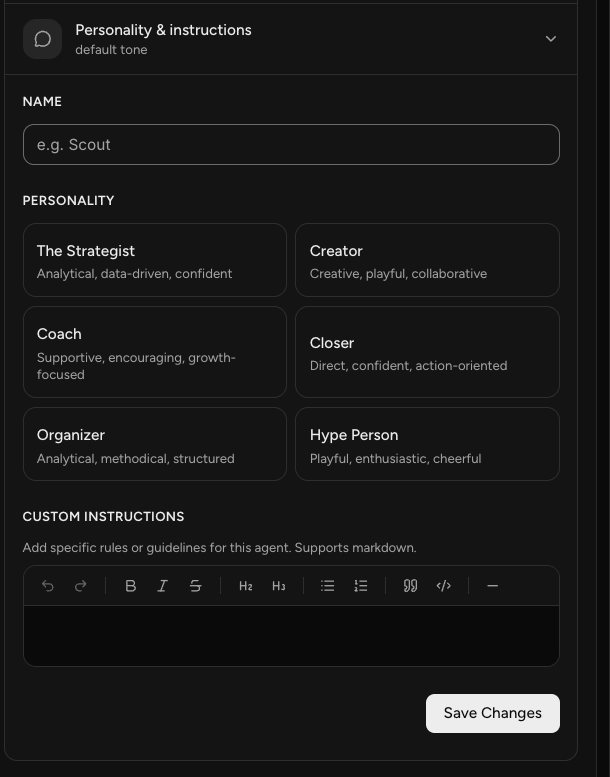
Name. Give the specialist a name of your own if you would rather not use the default.
Personality. Choose one of six presets:
- The Strategist: analytical, data-driven, confident.
- Creator: creative, playful, collaborative.
- Coach: supportive, encouraging, growth-focused.
- Closer: direct, confident, action-oriented.
- Organizer: analytical, methodical, structured.
- Hype Person: playful, enthusiastic, cheerful.
A specialist runs one personality at a time. If you have not chosen one, it uses a default tone.
Custom instructions. Add specific rules or guidelines for this specialist, such as terms to avoid, formatting you prefer, or details about your business it should always keep in mind. The editor supports markdown and gives you basic formatting controls.
Don't forget to select Save Changes when you're done!
Frequently Asked Questions
Q: Do these settings apply to all my specialists or just one?
A: Just one. The Settings tab configures the specialist whose chat you are in, and each is set up separately. Changing something for one does not affect any other.
Q: Can I give each specialist a different personality?
A: Yes. Personality is set per specialist, with one active at a time for each. Your Closer-style Promotions Specialist and your Creator-style Designer can run side by side.
Q: If I turn off a connected app here, do I lose the connection?
A: No. The toggle only controls whether this specialist uses that platform. The connection itself stays in place, your other specialists keep their access, and turning it back on requires no setup.
Q: What is the difference between tools and connected apps?
A: Tools are capabilities built into Sam, grouped by function. Connected apps are outside platforms you linked yourself, like your email platform or ad account.
Q: Is this the same as the Settings page in my account menu?
A: No. This tab configures one specialist. The Settings page in your account menu holds your account and workspace settings.
Q: Can I rename a specialist?
A: Yes. Use the Name field in Personality & instructions.
Q: How do I stop an automation without deleting it?
A: Use its toggle in the Automations section. It stays in place and you can turn it back on whenever you want.