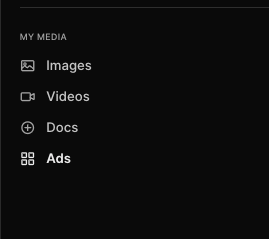
My Media is where everything your team creates lives, alongside the files you upload yourself.
Find it in the left navigation, below Webpages. It has four views: Images, Videos, Docs, and Ads.
Unlike the Workbench, which shows what came out of the chat you are currently in, My Media pulls your content together in one place regardless of which conversation produced it.
Images
Holds images your specialists generated and images you uploaded. Each card is badged Uploaded or Generated so you can tell them apart at a glance, along with the file name, its size, and when it was added.
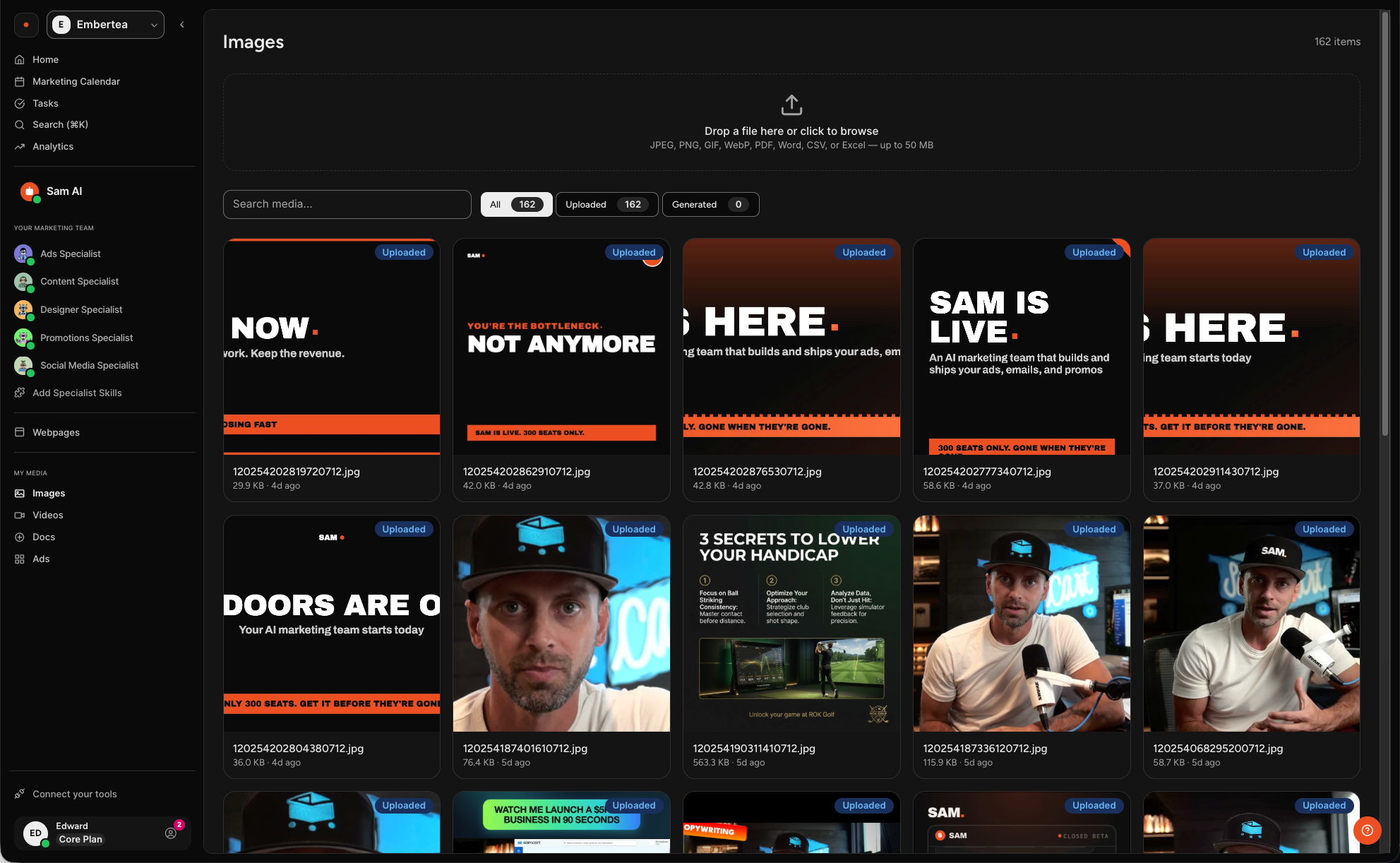
Filter the view by All, Uploaded, or Generated, and use the search box to find something by name.
To add your own, drop a file onto the upload area at the top or select it to browse. Images accepts JPEG, PNG, GIF, WebP, PDF, Word, CSV, and Excel files, up to 50 MB each.
Videos
Holds videos your specialists made and videos you uploaded, each showing its name and when it was added. Use the search box to find one by name.
Upload your own the same way, by dropping a file or selecting to browse. Videos accepts MP4, MOV, and WebM files, up to 4 GB each.
Docs
Everything your team has created, in one list, across every content type. Text, images, and video all appear here together, which makes this the view to use when you know something was made but not what kind of thing it was.
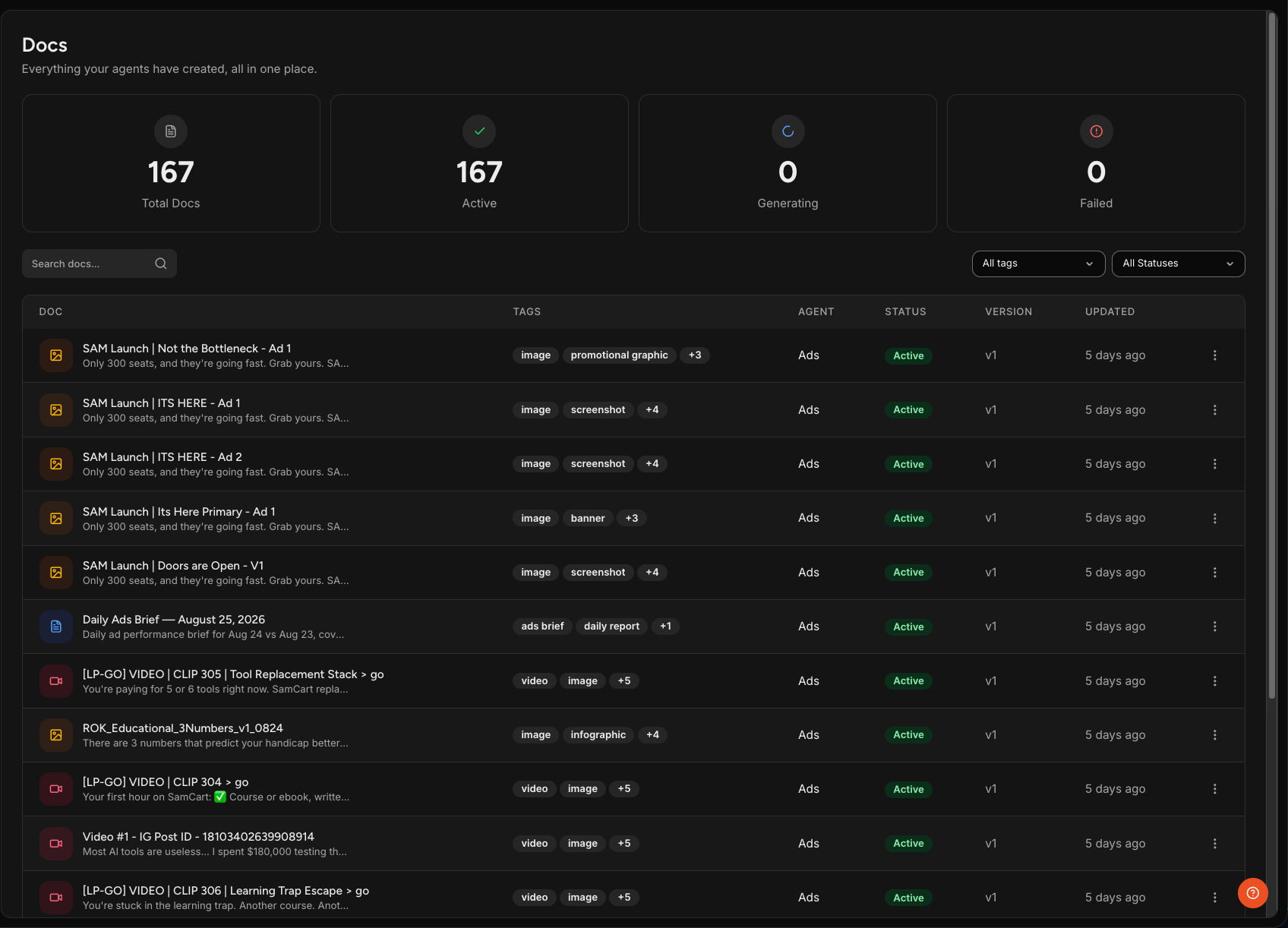
Four counts sit at the top: Total Docs, Active, Generating, and Failed.
Each row shows the item name and a preview of its contents, its tags, which specialist created it, its status, its version, and when it was last updated.
Search by name, or narrow the list with the tag and status filters.
Status tells you where an item is:
- Active: created and ready to use.
- Generating: still being made.
- Failed: something went wrong and the item was not created.
- Archived: moved out of your active view.
NOTE: Archived items do not appear by default. Select Archived from the status filter to find them.
Managing an Item in Docs
Select the three-dot menu at the end of any row for three options.

- Pin to top: moves the item to the top of the list so you can get back to it easily.
- Rename: gives the item a name that makes sense to you.
- Archive: moves it out of your active view without deleting it.
Ads
The Ad Library brings your ads together across your connected ad platforms. It has two tabs.
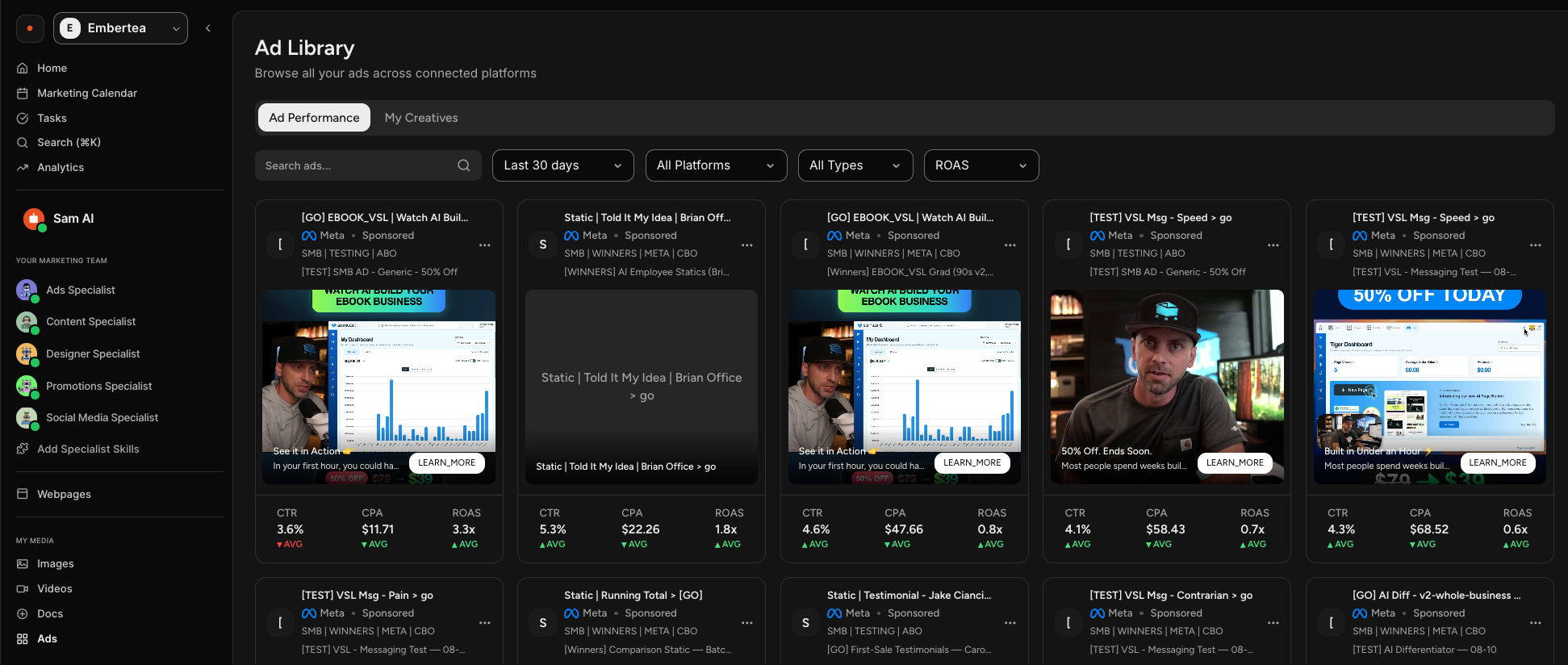
Ad Performance shows how your live ads are doing. Each ad displays metrics such as CTR, CPA, and ROAS, compared against your average so you can see what is over- and under-performing. Filter by date range, platform, and ad type, and sort by whichever metric matters to you, including ROAS, spend, revenue, conversions, impressions, and clicks.
My Creatives is your ad creative library. Select Sync from Ads to pull existing creatives down from your connected platforms into Sam, or upload your own by dropping files or selecting Upload.
Filter creatives by source or platform, search by name, and sort the list. Selecting creatives brings up a bar at the bottom where you can add tags, archive, or delete them together.
NOTE: The Ad Library depends on a connected ad account. If nothing is connected, it will be empty. Connect Meta, Google Ads, or TikTok Ads under Connect your tools at the bottom of the left navigation.
Frequently Asked Questions
Q: Where is all my content stored?
A: In My Media in the left navigation, split into Images, Videos, Docs, and Ads. Docs is the broadest view, listing what your team has created across every content type.
Q: What is the difference between My Media and the Workbench?
A: The Workbench shows what came out of the chat you are in. My Media collects your content in one place regardless of which conversation made it. The same item can appear in both.
Q: What can I upload, and how big can it be?
A: In Images, you can upload JPEG, PNG, GIF, WebP, PDF, Word, CSV, and Excel files up to 50 MB each. In Videos, MP4, MOV, and WebM up to 4 GB each. Drop a file onto the upload area or select it to browse.
Q: Where did my archived item go?
A: It is still there. Go to Docs and choose Archived from the status filter. Archiving only moves an item out of your default view.
Q: Why does an item say Failed?
A: Something went wrong while it was being created, so the item was not produced. Active means it is ready and Generating means it is still being made.
Q: Why is my Ad Library empty?
A: It shows ads from connected ad platforms, so it stays empty until you connect one. Connect Meta, Google Ads, or TikTok Ads under Connect your tools.
Q: Where are my webpages?
A: Under Webpages in the left navigation, which sits just above the My Media group rather than inside it.