Connect your Shopify store to Sam by creating a custom app in Shopify, then pasting three values into Sam.
Sam's Shopify connector asks for three things: your app's Client ID, your app's Client secret, and your store's myshopify.com domain. You create the app that produces the first two inside Shopify's Dev Dashboard.
You do not need the Shopify CLI, a developer, or any code. Every step happens in the Shopify Dev Dashboard interface.
NOTE: As of August 2026, Sam's one-click Shopify sign-in is pending review by Shopify. Until that review completes, Shopify connects through the custom app in this article, which gives Sam the same read-only access. You create the app once and the connection keeps working after that.
Integrations in Sam - for readers who want the general integration concept first]
Before You Begin
Confirm you have all four of these.
- A Shopify store you own or administer.
- Your store's myshopify.com domain. This is the domain Shopify issued when you created the store, not your public storefront domain. For example,
timelessadorns.myshopify.comrather thantimelessadorns.com. - Access to the Shopify Dev Dashboard at dev.shopify.com, using the same login you use for your store.
- Permission to install an app on the store.
Step 1 - Create the Custom App
- Go to the Shopify Dev Dashboard at dev.shopify.com and open the dashboard section.
- In the left sidebar, select Apps.
- Select Create app in the top right.
- Select Start from Dev Dashboard. This is the option that avoids needing code or the CLI.
- Enter any app name you want. The name is for your reference only and does not affect the connection. Naming it Sam makes it easy to recognize later.
- Select Create.
Step 2 - Configure the App Settings
The app needs one app URL, one redirect URL, and six read-only scopes. These values must match exactly. A typo in the redirect URL or a missing scope is the most common reason the connection fails later.
Open the app you created and select the Versions tab, then enter the following.
App URL
https://getsam.bot
Redirect URL
https://app.getsam.bot/api/marketplace/v1/oauth/callback
Scopes
read_customers,read_inventory,read_orders,read_product_feeds,read_product_listings,read_products
Webhooks API version: select the newest version in the list.
When everything is entered, select Release to save the version.
NOTE: The settings do not take effect until you select Release. Entering the values and navigating away leaves the app unconfigured, and the connection will fail.
All six scopes are read-only. Sam reads data from Shopify with these permissions and does not gain permission to change your products, inventory, or orders.
Step 3 - Install the App on Your Store
The custom app does nothing until it is installed on a store.
- In the Shopify Dev Dashboard, open your app and select Home in the left sidebar.
- Scroll down and select Install app.
- Select the store you want to connect.
- Confirm the installation.
Step 4 - Find Your Client ID and Client Secret
- In the Shopify Dev Dashboard, open your app and select the Settings tab.
- Copy the Client ID.
- Copy the Client secret.
- Have your store domain ready in the form
yourstore.myshopify.com.
Treat your client secret like a password. Do not post it in a public forum, a chat transcript, or a support ticket. SamCart support will never ask you for it.
Step 5 - Enter Your Credentials in Sam
- In Sam, select Connect your tools at the bottom of the sidebar.
- Select Shopify.
- Enter your Client ID from the Shopify Dev Dashboard.
- Enter your Client secret from the Shopify Dev Dashboard.
- Enter your store domain in the form
yourstore.myshopify.com. - Submit the form.
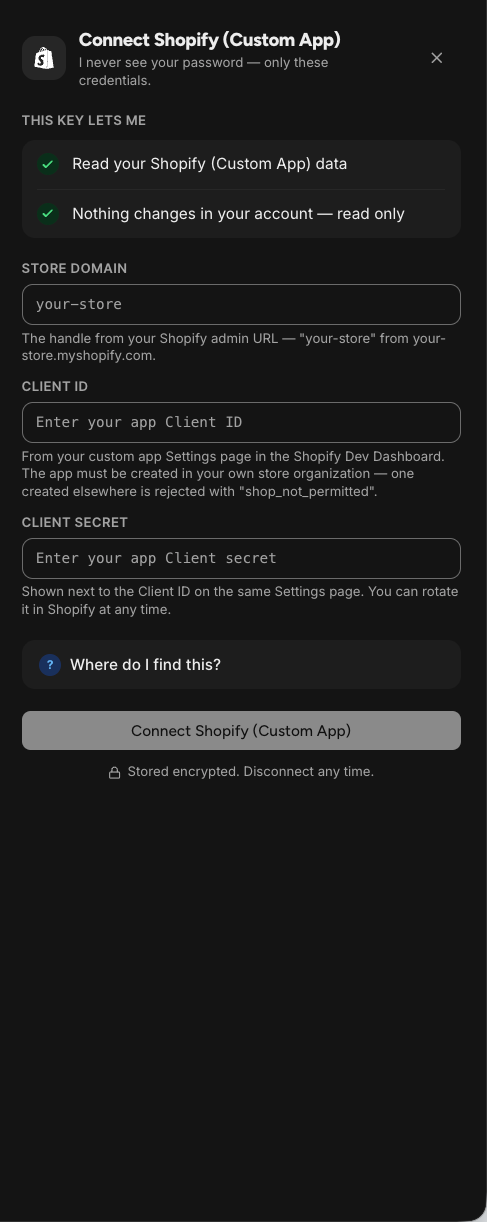
Confirm Shopify now appears as connected in your list of connected tools. That's it, you're done!
What Sam Reads From Your Store
The six scopes give Sam read-only access to the following.
- read_products: Your products, variants, and pricing.
- read_product_listings: Which products are published to sales channels.
- read_product_feeds: Product feed data used for catalog syncing.
- read_inventory: Stock levels for your products.
- read_orders: Orders and the revenue data on them.
- read_customers: Your customer records.
What the Shopify Connection Does Not Do
The Shopify connection gives Sam read-only visibility into your store. Sam does not create, edit, or delete Shopify products. Sam does not change inventory, fulfill orders, issue refunds, or edit customer records.
The connection also does not move your Shopify checkout or replace your storefront. It reads your store data so Sam can use your real products, prices, and sales figures in the marketing work you ask for.
Frequently Asked Questions
Q: Do I need the Shopify CLI or a developer to connect Shopify?
A: No. Every step happens in the Shopify Dev Dashboard interface. You do not install the CLI, run any commands, or write any code. You create an app, enter an app URL, a redirect URL, and six scopes, install the app on your store, then paste the client ID, client secret, and myshopify.com domain into Sam.
Q: Why do I have to create an app instead of just signing in?
A: Sam's one-click Shopify sign-in is pending review by Shopify as of August 2026. Until that review completes, Shopify connects through a custom app you create yourself. The custom app gives Sam the same read-only access, and the connection keeps working once it is set up.
Q: Which store domain do I enter, my real domain or the myshopify one?
A: Enter the myshopify.com domain, in the form yourstore.myshopify.com. Do not enter your public storefront domain, even if that is the address customers use. You can find your myshopify.com domain in your Shopify admin under your store's domain settings.
Q: Can I name the app whatever I want?
A: Yes. The app name is for your own reference in the Shopify Dev Dashboard and has no effect on the connection. The app URL, redirect URL, and scopes must match the required values exactly, but the name is free text.
Q: Is the connection safe, and can Sam change my store?
A: The connection uses six read-only scopes, so Sam can read products, inventory, orders, and customers but cannot create, edit, or delete anything in your store. Keep your client secret private the same way you would a password. If you want to end the connection, uninstall the custom app from your Shopify store.
Q: My connection failed. What should I check first?
A: Check that the redirect URL in your app matches the value in this article exactly, that all six scopes are present, and that you selected Release on the Versions tab after entering them. Also confirm the app is installed on the store, and that you entered the myshopify.com domain rather than your public storefront domain. If it still fails, contact SamCart support with your store's myshopify.com domain, and do not include your client secret in the message.
