AI Usage shows what your team worked on this period and what it cost in credits.
Select the profile icon on your account chip in the bottom left corner, then choose AI Usage.
This covers your whole account, so if you run more than one business line, the numbers here include all of them.
Credits Used This Period
The top of the page shows how many credits you have used against what your plan includes, as a running total and a percentage, with the number remaining and the date it resets.
If you need to change your limits or add credits, Set spend limits and manage overages in billing takes you straight there.
What You Created
Six counters show what your team actually produced this period.
- Chats with SAM and Messages, covering how much conversation happened.
- Images created and Videos rendered.
- Pages built.
- Creations, a total across everything your team made.
These reset alongside your credits, so they always describe the period you are looking at.
Credits Over Time
Two charts sit below the counters.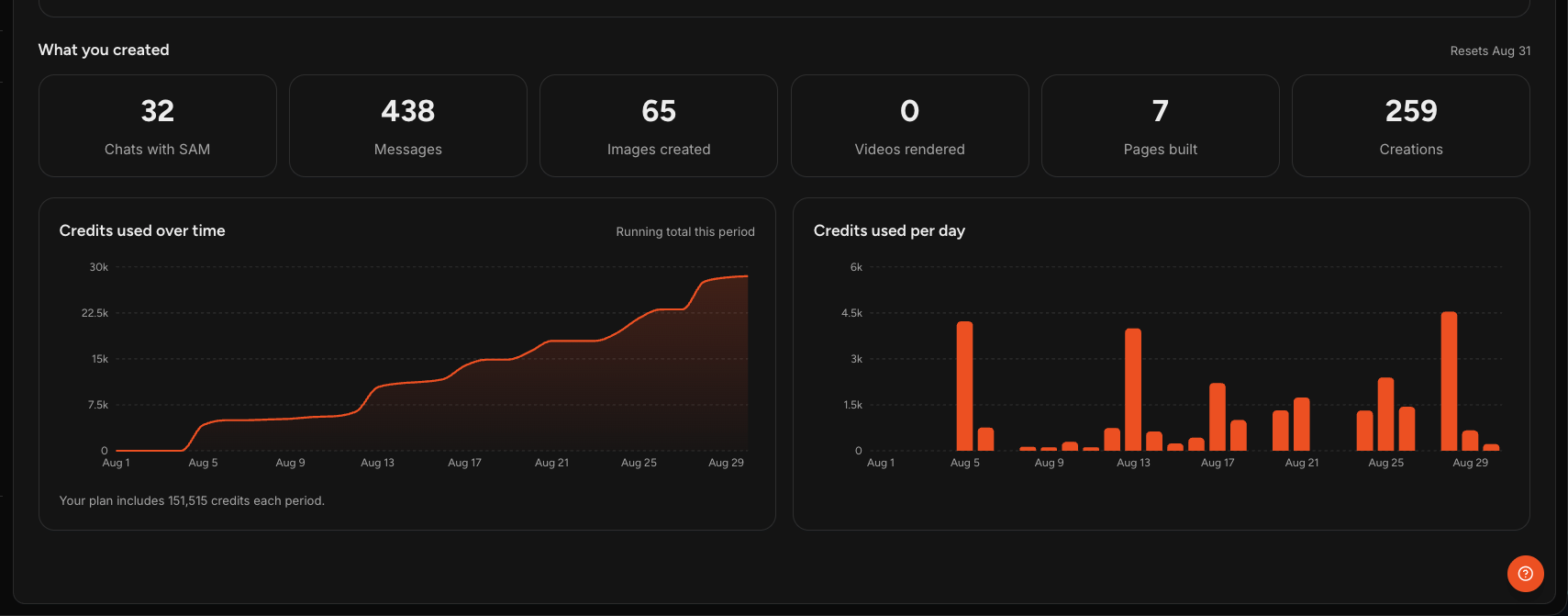
Credits used over time is your running total across the period, so you can see whether you are on pace or heading for a shortfall.
Credits used per day breaks the same usage into individual days, which is where spikes show up. A tall bar usually lines up with a day you ran something substantial.
Looking at Earlier Periods
The date range in the top right corner shows which period you are viewing. Switch it to look back at previous periods and compare.
How Sam Bills for AI
Sam operates a fair billing policy. When the cost of running AI drops, those savings are passed to you. When costs rise, whether from new models or other changes, Sam absorbs the difference rather than passing a sudden jump on to your credit usage.
In practice, your credit usage reflects the work you asked for, not what is happening to AI pricing behind the scenes.
Where Else Credits Appear
Three places show credit information, each for a different reason.
- AI Usage, this page, is the detailed view: what was produced, when credits were spent, and how the period compares to earlier ones.
- Your Home screen shows month-to-date usage broken down by chat, image, and tasks, for a quick check without leaving your workspace.
- Billing is where you act on it, adding credits, turning on auto reload, or setting a spend limit.
Frequently Asked Questions
Q: Where do I find AI Usage?
A: Select the profile icon on your account chip in the bottom left corner, then choose AI Usage.
Q: Does this cover all my business lines?
A: Yes. AI Usage is account-wide, so the totals include every business line you run.
Q: What counts as a Creation?
A: Anything your team produced, across images, documents, pages, and the rest, which is why the number is higher than any single counter.
Q: Why did my credits jump on one day?
A: Check Credits used per day and match the spike to what you were doing. Larger jobs such as multi-step playbooks or batch generation use more than a short conversation.
Q: Can I see previous periods?
A: Yes. Change the date range in the top right corner.
Q: Will my credit cost go up if AI gets more expensive?
A: No. Sam absorbs sudden increases in AI costs rather than passing them on, and when costs fall those savings come back to you.
Q: I am running low on credits. What now?
A: Go to Billing to add overage credits or turn on auto reload. Your plan allowance also resets each period, and the reset date is shown at the top of this page.