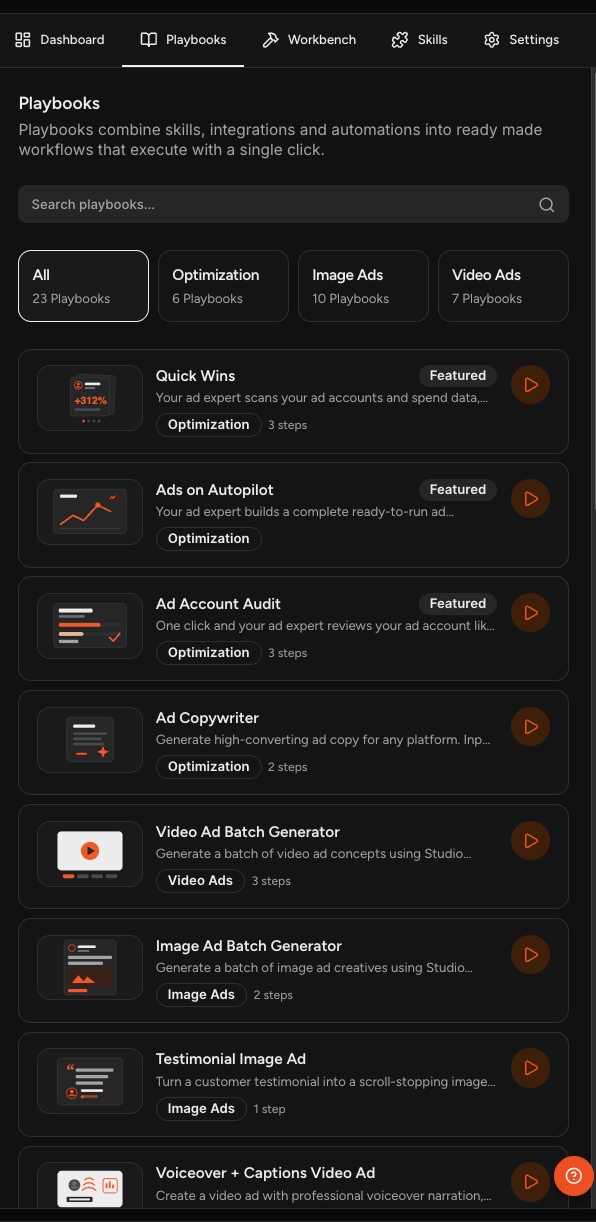
Playbooks are ready-made workflows that produce a specific piece of work with a single click.
Each playbook bundles skills, integrations, and automations into one workflow, so you do not have to set up the steps yourself or write a detailed prompt. Selecting a playbook tells Sam or a specialist to go make that thing.
Because a playbook starts from what Sam already knows about your business, you usually get something useful without filling anything in first.
Where to Find Playbooks
Every chat has playbooks. Open Sam AI or any of your five specialists, and the Playbooks tab sits in the panel on the right.
Each one has its own set, built for the work it does, and the sets are genuinely different. Sam's playbooks are about strategy and getting more out of what you already have. The Ads Specialist has a large set covering image ads, video ads, and campaign optimization. The Social Media Specialist covers platform-specific work like X threads and Instagram carousels. The Content, Designer, and Promotions Specialists each have sets built around their own areas.
Use the search box at the top of the panel to find a playbook by name. When a specialist has a lot of them, category filters appear above the list so you can narrow it down.
Sam's AI Marketing Team - for what each specialist does
Reading a Playbook Listing
Each playbook in the list shows you a few things.
- Name and description: what the playbook makes.
- Category: the type of work it belongs to, such as Optimization, Image Ads, or Content Creation. Categories vary by specialist.
- Step count: how many stages the workflow runs, when one is shown.
- Featured: a label marking a playbook as recommended.
NOTE: The Featured label only highlights a playbook in the list. It does not change how the playbook runs or what it produces.
Checking a Playbook Before You Run It
Select any playbook in the list to open its details. This shows the full description, its categories, and the steps it will run, each one named so you can see what the workflow actually does.
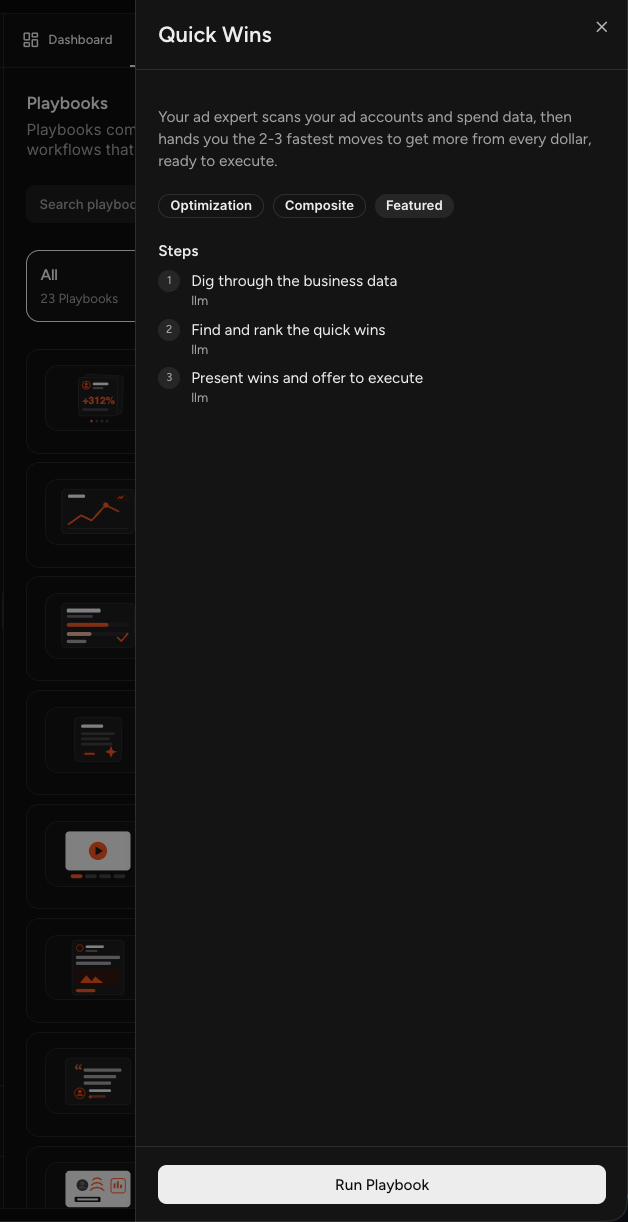
If it looks right, select Run Playbook at the bottom. If not, close the panel and you are back at the list with nothing run.
What the Step Count Means
Steps are stages the specialist runs on its own, not tasks for you. A two-step playbook runs two stages in order to build the result. A show notes playbook might summarize the episode in step one and format the notes in step two.
Some playbooks run a single step and others run several. Not every playbook shows a step count.
Running a Playbook
Open Sam AI or a specialist, go to the Playbooks tab, and select the playbook you want.
One of two things happens next. If there is enough information to work with, the playbook runs and creates the content. If it needs more detail first, it stops and asks you before generating anything. Some playbooks are built to take a brief or an upload, so you may be asked for that up front.
What Information a Playbook Uses
Playbooks start from the business information Sam already has. What you provided during setup feeds in, and Sam keeps building on that as you use it, so playbooks tend to get better as Sam learns more about your business.
This is why you can usually run a playbook without entering anything. When a playbook needs something specific that Sam does not have, it asks.
The Same Playbook Can Work Differently
Some playbook names appear in more than one place, but they are scoped to whoever is running them.
Quick Wins is the clearest example. Run it with Sam and it looks across everything Sam knows about your business. Run it with the Ads Specialist and it goes through your ad accounts and spend data. Run it with the Social Media Specialist and it looks at reach and engagement on your accounts. Run it with the Designer Specialist and it reviews your brand and creative assets.
Same idea, different lens. If you want a specific kind of quick win, run it from the specialist that owns that area.
Where the Output Goes
Results appear in two places: the chat where you ran the playbook, and the Workbench.
The chat shows the result as part of the conversation. The Workbench keeps the created content so you can come back to it, and it is where you edit text, preview and download images, and reuse what was made.
Frequently Asked Questions
Q: What is a playbook?
A: A ready-made workflow that creates a specific piece of work with one click. It combines skills, integrations, and automations, so selecting it tells Sam or a specialist to go make that thing using what Sam already knows about your business.
Q: Which specialists have playbooks?
A: All of them, plus Sam. Open Sam AI or any specialist and the Playbooks tab is in the panel on the right. Each has its own set, so what you see depends on who you opened.
Q: Do I have to fill anything in to run a playbook?
A: Not usually. If there is enough information to work with, the playbook just runs. If it needs more detail, or if it is built around a brief or an upload, it asks you before generating.
Q: I ran the same playbook from two places and got different results. Why?
A: Some playbooks share a name across specialists but are scoped to that specialist's area. Quick Wins with the Ads Specialist looks at ad spend, while Quick Wins with the Designer Specialist looks at your creative assets. Run it from the specialist that owns the area you care about.
Q: What do the steps mean?
A: They are the stages the specialist runs to build the output, not tasks for you. A two-step playbook runs two stages in order, such as summarizing first and formatting second.
Q: What does the Featured label mean?
A: It marks a playbook as recommended in the list. A featured playbook runs exactly the same way as any other.
Q: Where do I find what a playbook made?
A: In the chat where you ran it, and in the Workbench, which keeps the content so you can open, edit, download, or reuse it later.