Automations let Sam and your specialists do work on their own, without you asking every time.
You set one up by describing what you want in a chat. Sam builds it, it runs on whatever timing you agreed, and the results come back to you.
Automations belong to the specialist they were created with, so your Ads Specialist can run ad reporting while your Content Specialist handles something else entirely. Sam can have its own too.
What an Automation Can Do
Roughly anything you would otherwise ask for by hand. An automation can have a specialist produce content on a schedule, pull performance data and report back, act when something happens in your business, or carry out an action in a platform you have connected.
A daily advertising performance brief that lands every morning at nine is a typical example: it gathers yesterday's numbers, compares them against the day before, and delivers a written summary with recommendations.
Because automations can reach your connected platforms, connecting more tools widens what they can do.
Creating an Automation
Ask for it in a chat. Open Sam AI or the specialist you want the automation to belong to, and describe the task and when it should happen. Sam sets it up for you.
You can also select Set Up Your First Automation on your Home screen, which opens a chat to do the same thing.
Be specific about two things: what you want done, and when you want it to happen. You might ask for a report every weekday morning, something that runs when a new order comes in, or a check that fires when a condition you describe is met. If Sam needs more detail, it will ask before setting anything up.
Managing Your Automations
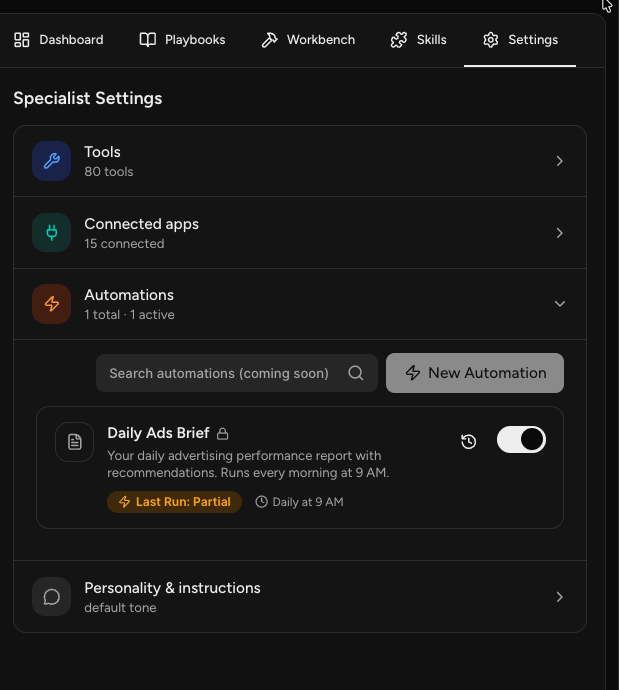
Open Sam AI or the specialist that owns the automation, select the Settings tab, and expand Automations. The section header shows how many exist and how many are currently active.
Each automation shows what it does and when it runs. From here you can:
- Turn it on or off with its toggle. Switching it off stops it running without deleting it, so you can pause something for a week and bring it back.
- Run it now with the run control, when you do not want to wait for the next scheduled time. This does not affect its normal timing.
- Open its run history with the history icon.
You can also just ask Sam to change an automation in a chat, the same way you created it.
Checking Run History
Select the history icon on any automation to see its recent runs.
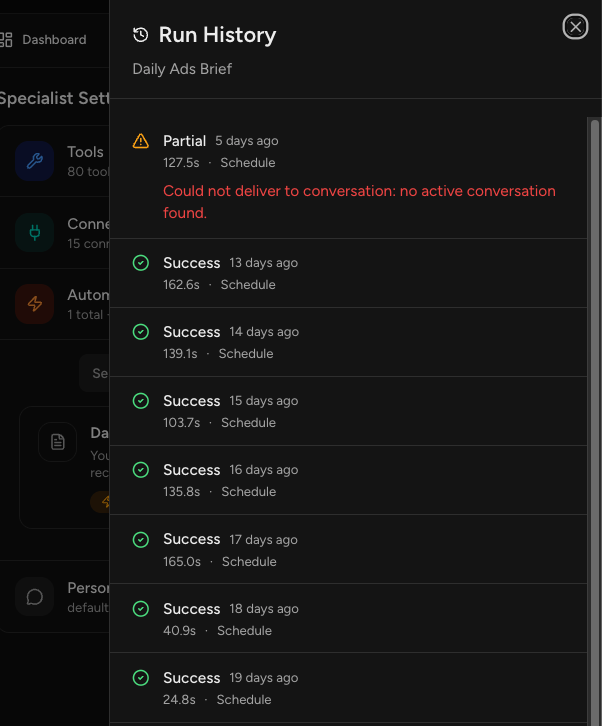
Each run shows its status, when it happened, how long it took, and what triggered it. Statuses you will see:
- Success: the automation ran and delivered its output.
- Partial: the automation ran but something did not finish. The run history shows a message explaining what went wrong.
Run history is the first place to look when an automation seems to have stopped working. A run that shows Partial often points at something straightforward, and the message tells you what.
Where the Output Goes
An automation delivers its work into the chat with Sam or the specialist that owns it, so you find results in the same place you would if you had asked for them directly.
Your Home screen also shows your automations, so you can see what is running without opening each specialist.
Frequently Asked Questions
Q: How do I create an automation?
A: Ask Sam or a specialist in a chat. Describe the task and when it should run, and Sam sets it up. The automation belongs to whichever one you were talking to.
Q: How do I stop an automation without losing it?
A: Open the Settings tab for Sam or the specialist that owns it, expand Automations, and use its toggle. It stays in place and you can switch it back on whenever you want.
Q: Can I run an automation right now instead of waiting?
A: Yes. Use the run control on the automation in the Settings tab, or ask Sam to run it. Either way its normal timing is unaffected, so it still runs as scheduled afterward.
Q: What does a Partial run mean?
A: The automation ran but something did not complete. Open its run history and the entry will show a message explaining what happened.
Q: Can I change an automation after it is set up?
A: Yes. Ask Sam in a chat to change it, or open it in the Settings tab for the specialist that owns it.
Q: Where does an automation's work end up?
A: In the chat with Sam or the specialist that owns it, the same place your other work with them appears.
Q: Can every specialist have automations?
A: Yes, and so can Sam. Automations belong to whichever one you created them with, so each can run work suited to its own area.